
Coding
Supported Coding Environments
- Claude Code
- VS Code with Claude Code Extension
- Antigravity with Claude Code Extension
Installing Claude Code
- Refer to the Claude Code documentation for installation.
All you need to do is EITHER
Set three environment variables (Linux and WSL), recommend adding to your profile to be persistent.
export ANTHROPIC_BASE_URL="https://chat.ultimateai.org"export ANTHROPIC_AUTH_TOKEN="<your api key>"export API_TIMEOUT_MS="3000000"
Or save settings in a config file (recommended for Windows)
- File located at
- %userprofile%\.claude\settings.json (Windows)
- ~/.claude/settings.json (Linux)
{ "env": { "ANTHROPIC_AUTH_TOKEN": "<your API key>", "ANTHROPIC_BASE_URL": "https://chat.ultimateai.org", "API_TIMEOUT_MS": "3000000" }}
Run claude.exe.
Claude Code Extension for VS Code and Antigravity
- Install Claude Code as shown earlier.
- Install Claude Code Extension for VS Code
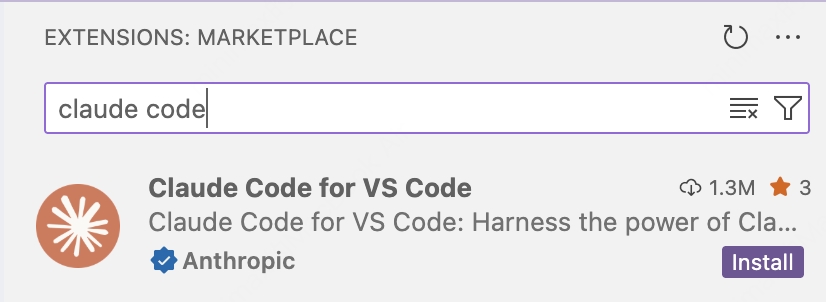
That's it.
Troubleshooting:
Claude: Check you do not already have a config file, if so edit\replace as per above;
- ~/.claude/settings.json (Linux)
- %userprofile%\.claude\settings.json (Windows)
That's It.