
Coding
Supported Coding Environments
(You may use others, these are the common ones tested)
- Claude Code CLI
- VS Code with Claude Code Extension
- Antigravity with Claude Code Extension
- Codex Desktop (Experimental)
Installing Claude Code
- Refer to the Claude Code documentation for installation.
All you need to do is EITHER
Set three environment variables (Linux and WSL), recommend adding to your profile to be persistent.
ANTHROPIC_BASE_URL="https://api.ultimateai.org"
ANTHROPIC_AUTH_TOKEN="<your api key>"
API_TIMEOUT_MS="3000000"
CLAUDE_CODE_DISABLE_NONESSENTIAL_TRAFFIC="1"
CLAUDE_CODE_AUTO_COMPACT_WINDOW="200000"
CLAUDE_CODE_DISABLE_1M_CONTEXT="1"
Or save settings in a config file (recommended)
- File located at
- %userprofile%\.claude\settings.json (Windows)
- ~/.claude/settings.json (Linux)
Example 1 (coding-latest)
{
  "env": {
    "ANTHROPIC_AUTH_TOKEN": "<your API key>",
    "ANTHROPIC_BASE_URL": "https://api.ultimateai.org",
    "API_TIMEOUT_MS": "3000000",
    "CLAUDE_CODE_DISABLE_NONESSENTIAL_TRAFFIC": "1",
    "CLAUDE_CODE_DISABLE_1M_CONTEXT": "1",
    "ANTHROPIC_DEFAULT_HAIKU_MODEL": "coding-latest",
    "ANTHROPIC_DEFAULT_SONNET_MODEL": "coding-latest",
    "ANTHROPIC_DEFAULT_OPUS_MODEL": "coding-latest"
  }
}
Example 2 (Using Anthropic Models)
{
  "env": {
    "ANTHROPIC_AUTH_TOKEN": "<your API key>",
    "ANTHROPIC_BASE_URL": "https://api.ultimateai.org",
    "API_TIMEOUT_MS": "3000000",
    "CLAUDE_CODE_DISABLE_NONESSENTIAL_TRAFFIC": "1",
    "CLAUDE_CODE_DISABLE_1M_CONTEXT": "1"
  }
}
Example 3 (MiniMax)
{
  "env": {
    "ANTHROPIC_AUTH_TOKEN": "<your API key>",
    "ANTHROPIC_BASE_URL": "https://api.ultimateai.org",
    "API_TIMEOUT_MS": "3000000",
    "CLAUDE_CODE_DISABLE_NONESSENTIAL_TRAFFIC": "1",
    "CLAUDE_CODE_DISABLE_1M_CONTEXT": "1",
    "ANTHROPIC_DEFAULT_HAIKU_MODEL": "minimax-latest",
    "ANTHROPIC_DEFAULT_SONNET_MODEL": "minimax-latest",
    "ANTHROPIC_DEFAULT_OPUS_MODEL": "minimax-latest"
  }
}
Example 4 (ZAI/GLM)
{
  "env": {
    "ANTHROPIC_AUTH_TOKEN": "<your API key>",
    "ANTHROPIC_BASE_URL": "https://api.ultimateai.org",
    "API_TIMEOUT_MS": "3000000",
    "CLAUDE_CODE_DISABLE_NONESSENTIAL_TRAFFIC": "1",
    "CLAUDE_CODE_DISABLE_1M_CONTEXT": "1",
    "ANTHROPIC_DEFAULT_HAIKU_MODEL": "glm-air",
    "ANTHROPIC_DEFAULT_SONNET_MODEL": "glm-latest",
    "ANTHROPIC_DEFAULT_OPUS_MODEL": "glm-latest"
  }
}
Example 5 (Qwen)
{
  "env": {
    "ANTHROPIC_AUTH_TOKEN": "<your API key>",
    "ANTHROPIC_BASE_URL": "https://api.ultimateai.org",
    "API_TIMEOUT_MS": "3000000",
    "CLAUDE_CODE_DISABLE_NONESSENTIAL_TRAFFIC": "1",
    "CLAUDE_CODE_DISABLE_1M_CONTEXT": "1",
    "ANTHROPIC_DEFAULT_HAIKU_MODEL": "qwen-flash",
    "ANTHROPIC_DEFAULT_SONNET_MODEL": "qwen-plus",
    "ANTHROPIC_DEFAULT_OPUS_MODEL": "qwen-max"
  }
}
Example 6 (Kimi)
{
  "env": {
    "ANTHROPIC_AUTH_TOKEN": "<your API key>",
    "ANTHROPIC_BASE_URL": "https://api.ultimateai.org",
    "API_TIMEOUT_MS": "3000000",
    "CLAUDE_CODE_DISABLE_NONESSENTIAL_TRAFFIC": "1",
    "CLAUDE_CODE_DISABLE_1M_CONTEXT": "1",
    "ANTHROPIC_DEFAULT_HAIKU_MODEL": "kimi-code",
    "ANTHROPIC_DEFAULT_SONNET_MODEL": "kimi-code",
    "ANTHROPIC_DEFAULT_OPUS_MODEL": "kimi-latest"
  }
}
Run claude.exe.
Claude Code Extension for VS Code and Antigravity
- Install Claude Code as shown earlier.
- Install Claude Code Extension for VS Code
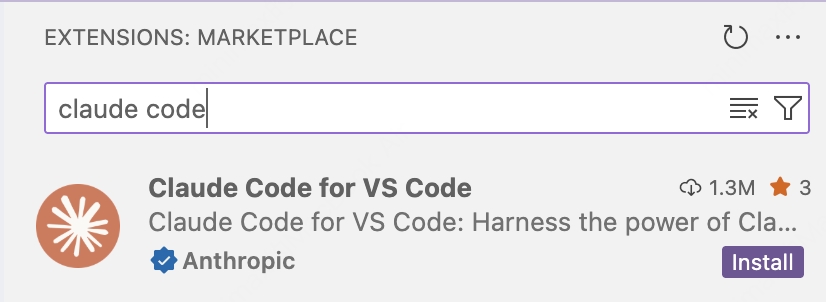
That's it.
Installing Gemini CLI
- Refer to the Gemini CLI installation, execution, and releases | Gemini CLI Documentation for installation.
- Set the below environment variables;
GOOGLE_GEMINI_BASE_URL=https://api.ultimateai.orgGOOGLE_GENAI_USE_VERTEXAI=falseGEMINI_API_KEY=<your api key>
Failure to do this, will result in degraded performance, as Gemini client will try and connect back to Google. MiniMax usage is not metered and supports all tool use.
Codex Desktop Client (same config for codex CLI)
- Download and Install the Codex Desktop Client
- Select "Enter API Key"
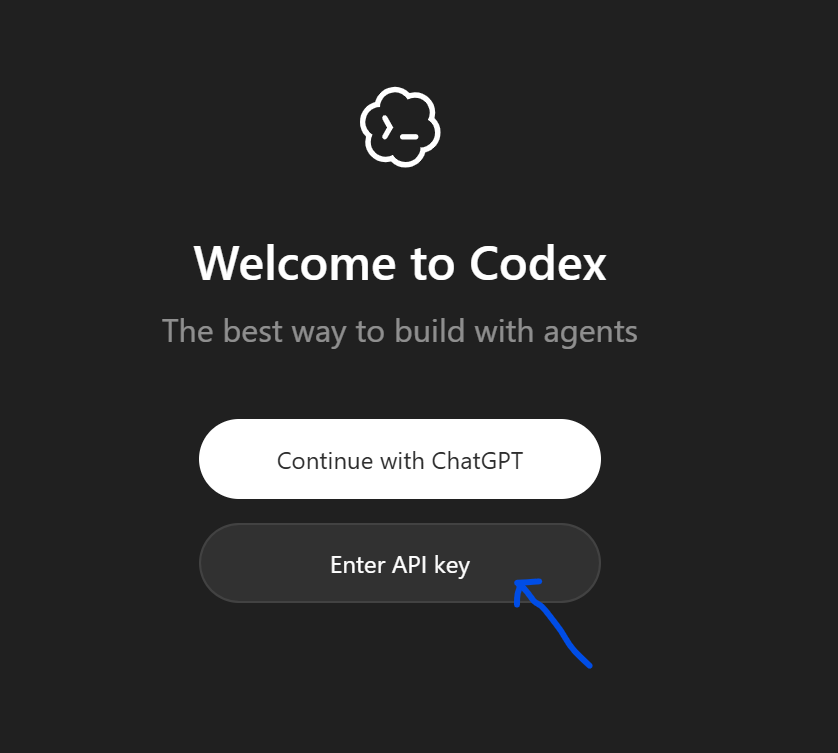
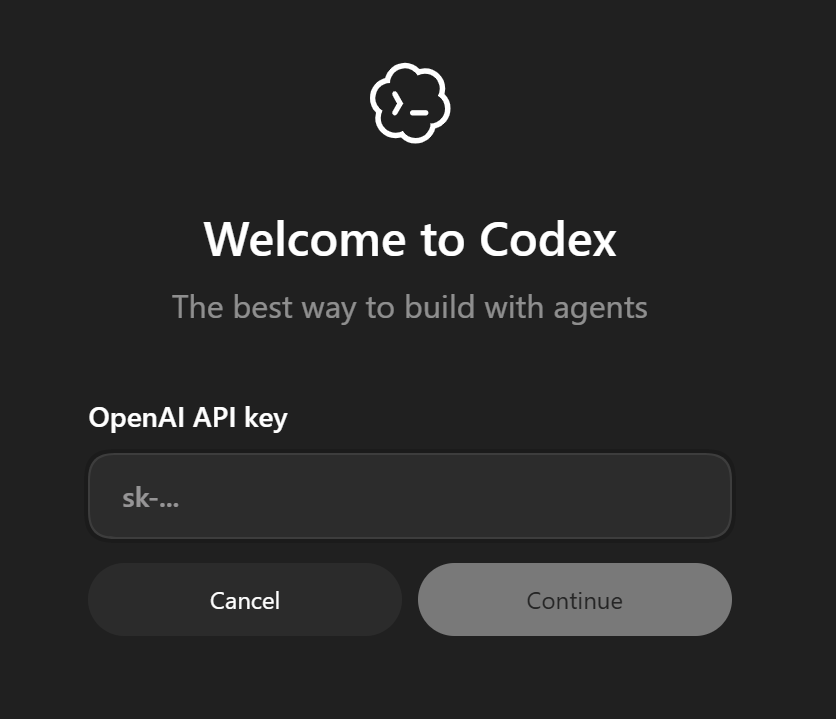
- Enter your API Key from UltimateAI (settings -> account)
- Add a single line to the top of your config.toml (hint: file-> settings -> open config)
Add this these lines to the top of your "~/.codex/config.toml"
openai_base_url = "https://api.ultimateai.org/v1"
model_context_window = 250000
model_auto_compact_token_limit = 200000
Start a NEW chat\window.
Note: For the first message, there may be a few re-tries while the protocol is negotiated.
Troubleshooting: If you already had Codex configured with another provider and you were not prompted for an API key, also edit "~/.codex/auth.json" then restart.
{ "auth_mode": "apikey", "OPENAI_API_KEY": "<your key>"}
Start a NEW chat\window.
Troubleshooting:
Claude: Check you do not already have a config file, if so edit\replace as per above;
- ~/.claude/settings.json (Linux)
- %userprofile%\.claude\settings.json (Windows)
- ensure environment variable ANTHROPIC_API_TOKEN does NOT exist
- MAC: Add to path
echo 'export PATH="$HOME/.local/bin:$PATH"' >> ~/.zshrc && source ~/.zshrc
Codex: if you already had Codex Installed or Previously Installed, reboot after modifying the token in auth.json. Closing\Restarting the client is not sufficient.