Please visit regularly for the latest hints and tips...

Coding

Supported Coding Environments

  • Claude Code CLI
  • VS Code with Claude Code Extension
  • Antigravity with Claude Code Extension
  • Gemini CLI
  • Codex Desktop (Experimental)

Installing Claude Code

  1. Refer to the Claude Code documentation for installation.

All you need to do is EITHER

Set three environment variables (Linux and WSL), recommend adding to your profile to be persistent.

ANTHROPIC_BASE_URL="https://api.ultimateai.org"
ANTHROPIC_AUTH_TOKEN="<your api key>"
API_TIMEOUT_MS="3000000"
CLAUDE_CODE_DISABLE_NONESSENTIAL_TRAFFIC="1"
CLAUDE_CODE_AUTO_COMPACT_WINDOW="200000"
CLAUDE_CODE_DISABLE_1M_CONTEXT="1"

Or save settings in a config file (recommended)

  1. File located at
    • %userprofile%\.claude\settings.json (Windows)
    • ~/.claude/settings.json (Linux)
Example 1 (coding-latest)
{
  "env": {
    "ANTHROPIC_AUTH_TOKEN": "<your API key>",
    "ANTHROPIC_BASE_URL": "https://api.ultimateai.org",
    "API_TIMEOUT_MS": "3000000",
    "CLAUDE_CODE_DISABLE_NONESSENTIAL_TRAFFIC": "1",
    "CLAUDE_CODE_DISABLE_1M_CONTEXT": "1",
    "ANTHROPIC_DEFAULT_HAIKU_MODEL": "coding-latest",
    "ANTHROPIC_DEFAULT_SONNET_MODEL": "coding-latest",
    "ANTHROPIC_DEFAULT_OPUS_MODEL": "coding-latest"
  }
}
Example 2 (Using Anthropic Models)
{
  "env": {
    "ANTHROPIC_AUTH_TOKEN": "<your API key>",
    "ANTHROPIC_BASE_URL": "https://api.ultimateai.org",
    "API_TIMEOUT_MS": "3000000",
    "CLAUDE_CODE_DISABLE_NONESSENTIAL_TRAFFIC": "1",
    "CLAUDE_CODE_DISABLE_1M_CONTEXT": "1"
  }
}
Example 3 (MiniMax)
{
  "env": {
    "ANTHROPIC_AUTH_TOKEN": "<your API key>",
    "ANTHROPIC_BASE_URL": "https://api.ultimateai.org",
    "API_TIMEOUT_MS": "3000000",
    "CLAUDE_CODE_DISABLE_NONESSENTIAL_TRAFFIC": "1",
    "CLAUDE_CODE_DISABLE_1M_CONTEXT": "1",
    "ANTHROPIC_DEFAULT_HAIKU_MODEL": "minimax-latest",
    "ANTHROPIC_DEFAULT_SONNET_MODEL": "minimax-latest",
    "ANTHROPIC_DEFAULT_OPUS_MODEL": "minimax-latest"
  }
}
Example 4 (ZAI/GLM)
{
  "env": {
    "ANTHROPIC_AUTH_TOKEN": "<your API key>",
    "ANTHROPIC_BASE_URL": "https://api.ultimateai.org",
    "API_TIMEOUT_MS": "3000000",
    "CLAUDE_CODE_DISABLE_NONESSENTIAL_TRAFFIC": "1",
    "CLAUDE_CODE_DISABLE_1M_CONTEXT": "1",
    "ANTHROPIC_DEFAULT_HAIKU_MODEL": "glm-air",
    "ANTHROPIC_DEFAULT_SONNET_MODEL": "glm-latest",
    "ANTHROPIC_DEFAULT_OPUS_MODEL": "glm-latest"
  }
}


Run claude.exe.


Claude Code Extension for VS Code and Antigravity

  • Install Claude Code as shown earlier.
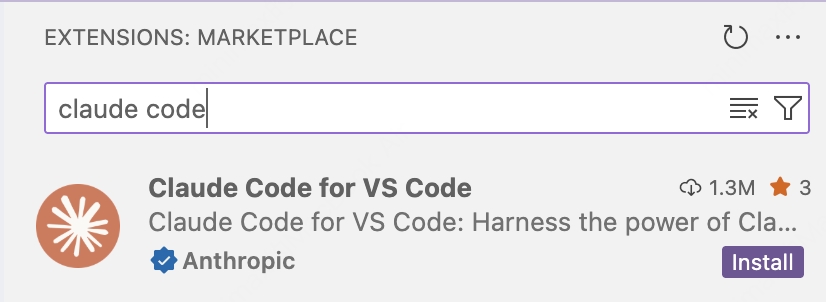
  • Install Claude Code Extension for VS Code

That's it.


Installing Gemini CLI

  1. Refer to the Gemini CLI installation, execution, and releases | Gemini CLI Documentation for installation.
  2. Set the below environment variables;

GOOGLE_GEMINI_BASE_URL=https://api.ultimateai.org
GOOGLE_GENAI_USE_VERTEXAI=false
GEMINI_API_KEY=<your api key>


Failure to do this, will result in degraded performance, as Gemini client will try and connect back to Google.  MiniMax usage is not metered and supports all tool use.


Codex Desktop Client (same config for codex CLI)

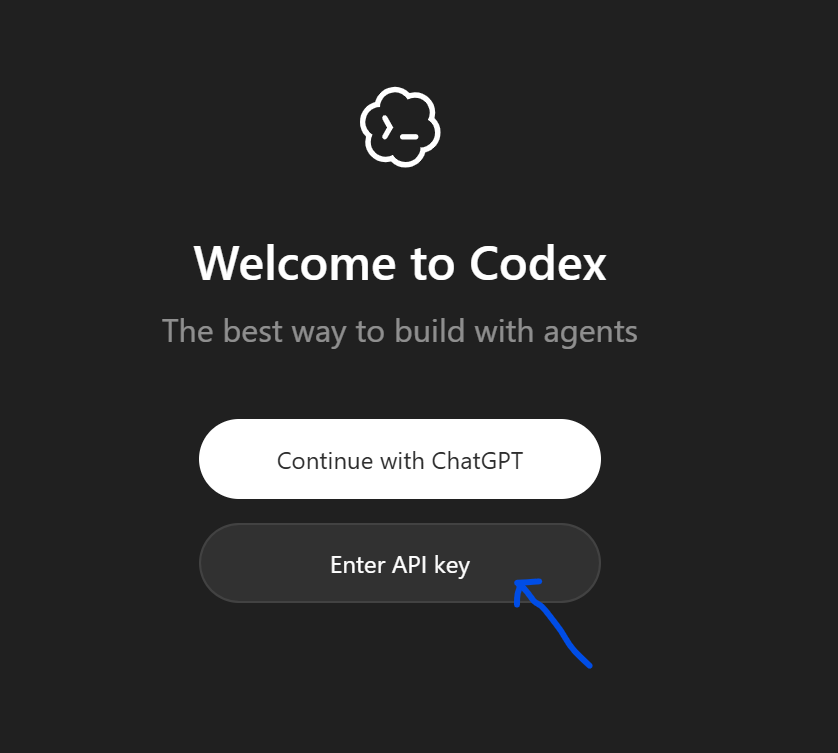
  1. Download and Install the Codex Desktop Client
  2. Select "Enter API Key"
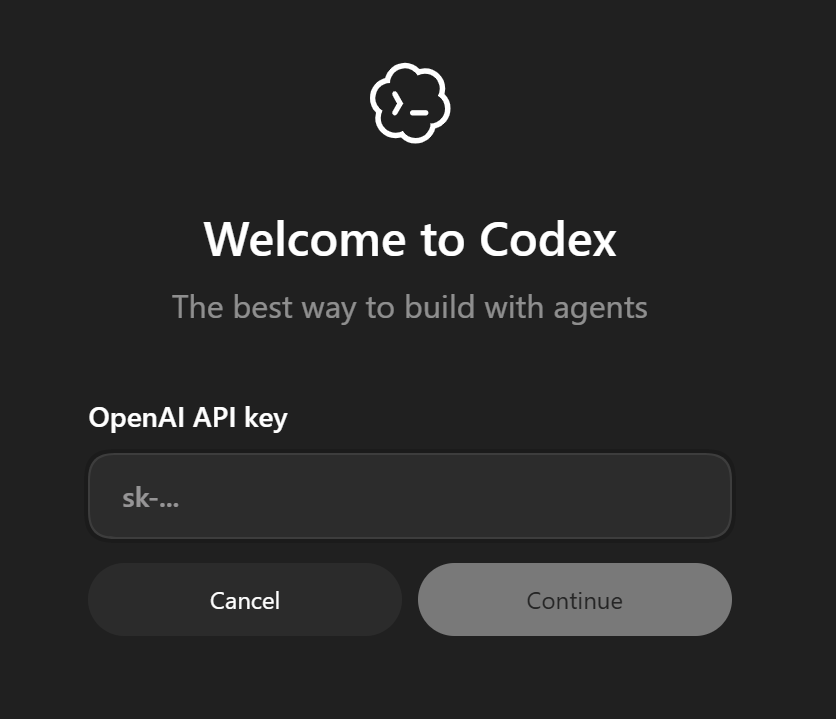
  3. Enter your API Key from UltimateAI (settings -> account)
  4. Add a single line to the top of your config.toml (hint: file-> settings -> open config)

Add this single line to the top of your "~/.codex/config.toml"

openai_base_url = "https://api.ultimateai.org/v1"

Start a NEW chat\window.

Note: For the first message, there may be a few re-tries while the protocol is negotiated.

Troubleshooting: If you already had Codex configured with another provider and you were not prompted for an API key, also edit "~/.codex/auth.json" then restart.

{
  "auth_mode": "apikey",
  "OPENAI_API_KEY": "<your key>"
}

Start a NEW chat\window.

Continue reading...

Obsidian Web Clipper

Obsidian Web Clipper is a convenient way to import chats into Obsidian. {{contentHtml | replace:("/<section><h2>.*?<\/h2>/g":"<section>", "<p><span>":"★BOT said<p><span>", "/<p>\S*</p>\s*<pre/g":"<pre") | markdown | blockquote | replace:("> ★BOT said\n> \n> ":"\n> [!bot]- ", "> ★User:★\n>":"\n> [!user]- Me")}} Optional (Set a Template Trigger), eg: https://.obsidianaitools.com, https://*.ultimateai.org, ect.. for the…

Continue reading...

AI Browser Extension

The AI Brower Extension is designed to be a simple chat interface and NOT as a direct replacement for the primary Chat Service. The following key features are available from v3.2; (Submitted Pending Store Approval) Right-Click on the Extension icon to modify settings. Here you…

Continue reading...